Approving a Campaign
When you finish setting up a campaign, you need to approve it, which does one of the following:
- If you did not specify a start date, or the specified start date has already passed, the campaign is started immediately, and tasks are sent to assignees.
- If the specified start date is in the future, the campaign is set as ready to start and moved into Pending status, where it will remain until the start date.
Important: You cannot start a campaign if one of the content items in the campaign is archived and has no replacement or newer published version.
Approve a Campaign
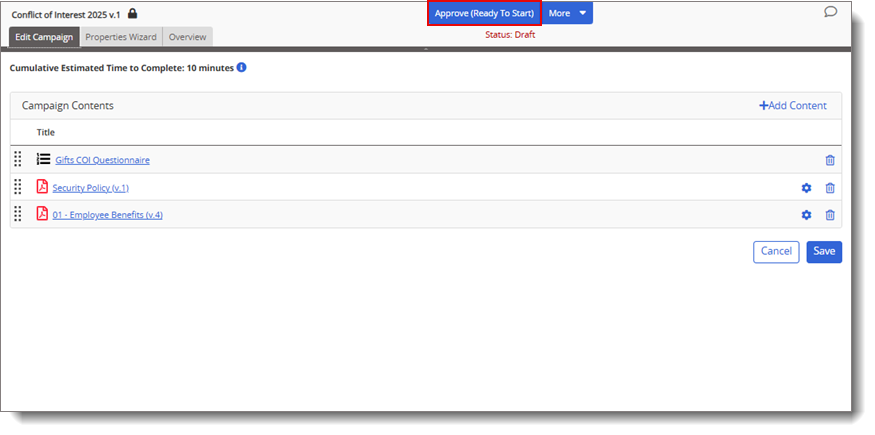
- From an open campaign, click Approve (Ready to Start).
- (Optional) In the Set as Approved box, replace the default "New Campaign" text with a description of the campaign's purpose.
Note: The text entered in this box will appear in the Change Summary field within the campaign.
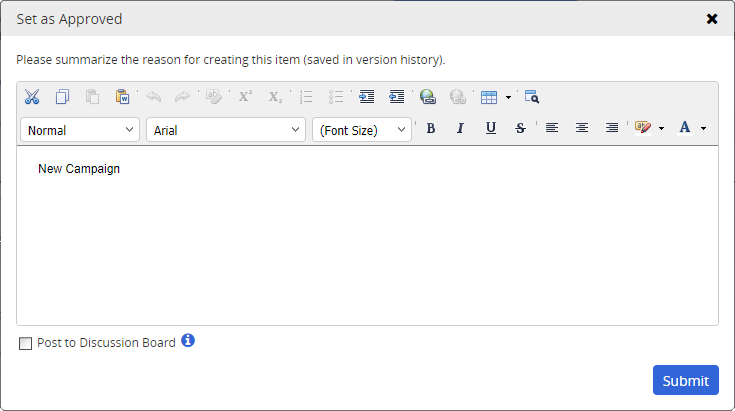
- (Optional) To add what you wrote to this campaign's discussion board, select Post to Discussion Board.
- Click Submit.
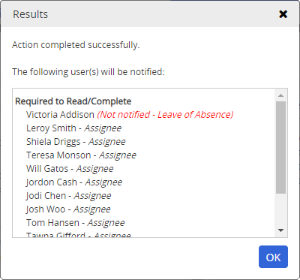
- If the campaign started immediately, a results prompt appears. Review the list of users who will be notified, and then click OK.
 Product Information
Copyright
Product Information
Copyright
This publication was written and produced at NAVEX Global, Inc., Lake Oswego, Oregon. This publication or any portion thereof is confidential and/or proprietary and may not be reproduced or used in any manner whatsoever without the express written permission of NAVEX Global, Inc.
Copyright © 2026 NAVEX Global, Inc. NAVEX Global® is a registered trademark/service mark of NAVEX Global, Inc. The NAVEX Global® logo is a trademark/service mark of NAVEX Global, Inc. Unauthorized use of NAVEX Global, Inc.’s trademarks/service marks is strictly prohibited without prior written permission from NAVEX Global, Inc.